Metadata: Created on November 2024, Product: PAC Classic
Overview
When filing to Missouri from PAC Classic, specific procedures must be followed to ensure compliance. Here's a step-by-step guide to assist you in the e-filing process.
Filing for the First Time
Enable Bulk Upload
- Ensure the 3rd party bulk upload option is enabled for your account on the Missouri Website.
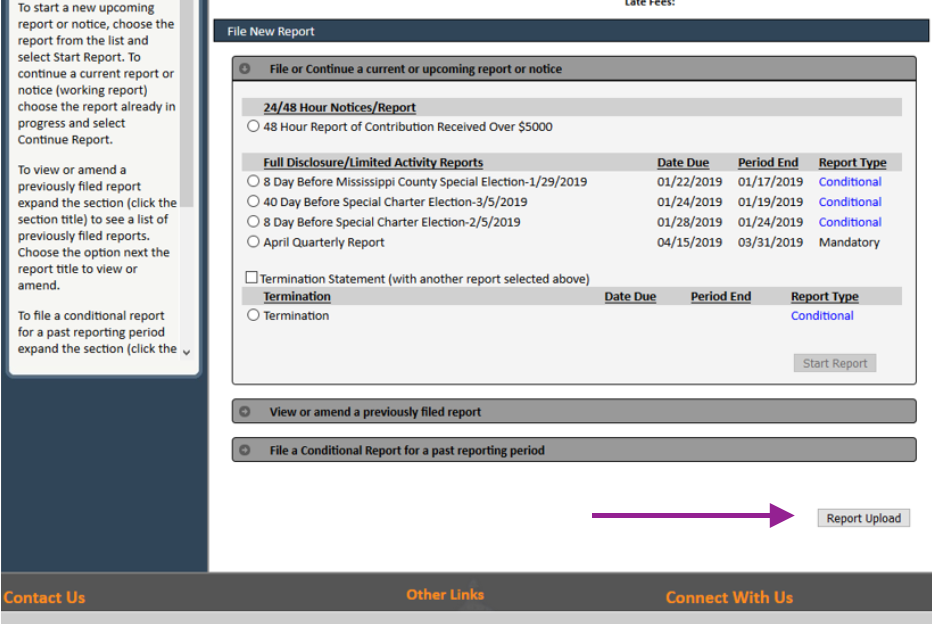
- Upon logging in, look for the "Report Upload" option on the lower right-hand side of the page.
 Note:
Note:
- This upload solution is different from the standard one offered by Missouri and is compatible with Quorum.
Handling Expenditures of $100 or Less
Action Required:
- For disbursements under $100 with the report code "Other Disbursement," add the "Expenditures of $100 or Less By Category" schedule to ensure proper reporting to Missouri.
Note:
- While the amount will appear on the PDF, it won't be included in the electronic file without this schedule.
Amending Reports
Explanation for Amended Report
- When amending a report, add an Explanation for Amended Report under the "Add Schedules" section.
- Enter the reason for the amendment and select the schedules that will be changed due to this amendment.
Example:
- If a new receipt changes your PAC’s totals, select "Committee Disclosure Report Cover Page," "Report Summary (CD Summary)," and "Expenditures and Contributions Made (CD3)."
Note:
- It's crucial that files produced from PAC Classic are immediately used to upload to Missouri after clicking "File" for an amendment.
- PAC Classic indicates which transactions have changed (updated, added, or deleted) for Missouri's tracking.
- Clicking "File/Submit" multiple times may lead to inaccuracies in the changes recorded. Contact the support desk if you encounter discrepancies.
Conclusion
Follow these steps diligently to ensure smooth and accurate e-filing to Missouri from PAC Classic.